A trade show lead is only worth something if it reaches the place where your team works: the CRM, with its history, reminders and statistics. Between the stand and the CRM, most exhibitors lose days retyping business cards, and some contacts never make it there.
Here are 3 ways to get the contacts captured with ScanLead into a CRM, from the simplest to the most automated, with their limits.
1. The Excel or CSV file (always included)
This is the most universal route: almost every CRM can import a file.
- In ScanLead, export one show or all your contacts, as Excel or CSV.
- The CSV is comma-separated when the interface is in English (semicolons for the other European languages) and keeps accents: it opens correctly in Excel.
- The headers are in the user's language and include the job title, the contact's temperature, the notes and the person who added it.
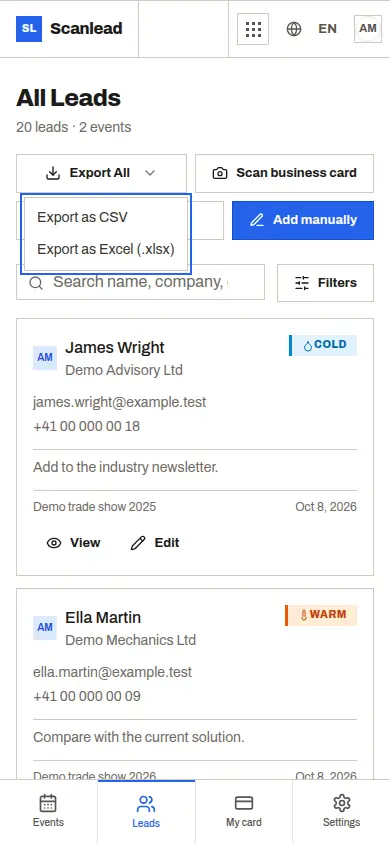
Limit: it is a manual step, to be repeated after each show, and changes made afterwards in ScanLead are not carried over.
2. The API and webhooks
For teams with an automation tool or a developer:
- The API lets you read shows and contacts, and create or edit them, with a key you create in the settings, section “API and external tools”.
- Webhooks send a signed message to the address of your choice each time a contact is created or edited.
- With a tool such as Make or Zapier, these messages can create the contact in your CRM (HubSpot, Salesforce, Pipedrive, etc.) without any manual step.
Limit: ScanLead has no native Salesforce or HubSpot integration; you need an automation tool in between. If your team wants a ready-made connection with these CRMs, solutions such as snapADDY offer one, at a different price: see snapADDY alternative.
3. The direct link with CRMlead
CRMlead is the CRM from the same family as ScanLead, designed so that every lead always has a dated next action.
- Open CRMlead with the same Lead account as ScanLead: the two apps link up on their own, nothing to copy or paste.
- Every scanned contact arrives in CRMlead as a lead, with the trade show name and its temperature. An edited contact is updated without duplicates; contacts already scanned go across in one click (ScanLead, Settings → Lead apps).
- From the contact's record, "Proposer des dates" (Suggest dates) emails them some time slots; they choose one, and the meeting is created.
- You can stop sending at any time in ScanLead (Settings → Lead apps).
Limit: this link only works with CRMlead. For another CRM, use the file or the API.
Which route to choose
- One or two shows a year, any CRM: the Excel file is enough.
- Regular shows and an automation tool already in place: the API and webhooks.
- No CRM yet, or a CRM that serves no purpose for lack of follow-up: ScanLead and CRMlead together.
In every case, the quality of the follow-up depends on what was noted on the stand: the contact's temperature and the promised next step. What to note and how: Business card scanner for trade shows.