A trade show lead is only worth something if it reaches the place where your team works: the CRM, with its history, reminders and statistics. Between the stand and the CRM, most exhibitors lose days retyping business cards, and some contacts never make it there.
Here are three ways to get the contacts captured with Scanlead into a CRM, from the simplest to the most automated, with their limits.
1. The Excel or CSV file (all plans)
This is the most universal route: almost every CRM can import a file.
- In Scanlead, export one show or all your contacts, as Excel or CSV.
- The CSV is comma-separated when the interface is in English (semicolons for the other European languages) and keeps accents: it opens correctly in Excel.
- The headers are in the user's language and include the job title, the contact's temperature, the notes and the person who added it.
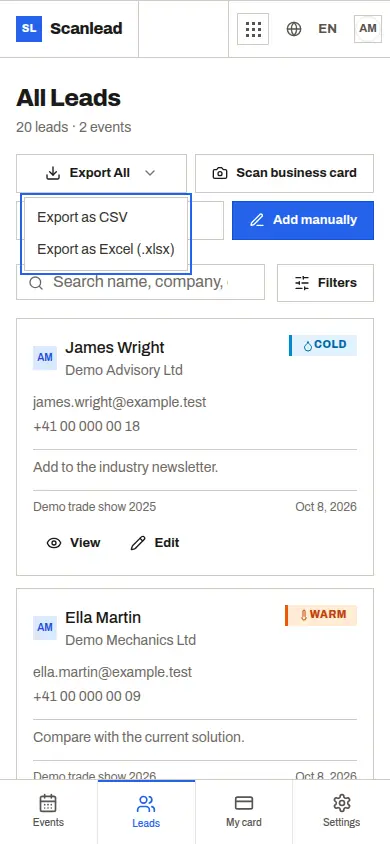
Limit: it is a manual step, to be repeated after each show, and changes made afterwards in Scanlead are not carried over.
2. The API and webhooks (Pro and Pro+)
For teams with an automation tool or a developer:
- The API lets you read shows and contacts, and create or edit them, with a key you create in Scanlead's settings.
- Webhooks send a signed message to the address of your choice each time a contact is created or edited.
- With a tool such as Make or Zapier, these messages can create the contact in your CRM (HubSpot, Salesforce, Pipedrive, etc.) without any manual step.
Limit: Scanlead has no native Salesforce or HubSpot integration; you need an automation tool in between. If your team wants a ready-made connection with these CRMs, solutions such as snapADDY offer one, at a different price: see snapADDY alternative.
3. The direct link with CRMlead
CRMlead is the CRM from the same family as Scanlead, designed so that every lead always has a dated next action.
- In CRMlead, go to Settings → Integrations → Scanlead, click "Relier Scanlead" (Connect Scanlead) and accept on the Scanlead screen. Pasting a Scanlead API key is still possible. You need a paid Scanlead plan (Pro or Pro+).
- Click "Récupérer mes contacts Scanlead" (Fetch my Scanlead contacts): your trade show contacts arrive in CRMlead. A new import completes existing contacts without creating duplicates.
- From the contact's record, "Proposer des dates" (Suggest dates) emails them some time slots; they choose one, and the meeting is created.
- You can revoke access at any time from Scanlead.
Limit: this link only works with CRMlead. For another CRM, use the file or the API.
Which route to choose
- One or two shows a year, any CRM: the Excel file is enough.
- Regular shows and an automation tool already in place: the API and webhooks.
- No CRM yet, or a CRM that serves no purpose for lack of follow-up: Scanlead and CRMlead together.
In every case, the quality of the follow-up depends on what was noted on the stand: the contact's temperature and the promised next step. What to note and how: Business card scanner for trade shows.