A visitor stops at your stand, you talk for five minutes, and they have a badge around their neck. The fastest way to keep their details is to scan that badge before they walk on.
Organizers often rent dedicated scanners for this. You can also use a badge scanner app on the phone already in your pocket. Here is what it can read, what it cannot, and how ScanLead handles both cases.
What is inside a trade show badge
Not all badges are equal. The QR code or barcode printed on them usually holds one of these:
- A vCard or MeCard: a standard contact format with name, company, email and phone. Any app that reads these gets the full contact.
- A JSON contact: the same data in a structured format some registration systems use.
- A LinkedIn profile link: the badge points to the visitor's profile.
- A number only: an ID that means something only inside the organizer's database. Without access to that database, the number tells you nothing.
Before the show, ask the organizer what their badges contain. It decides which tool you need.
What ScanLead reads
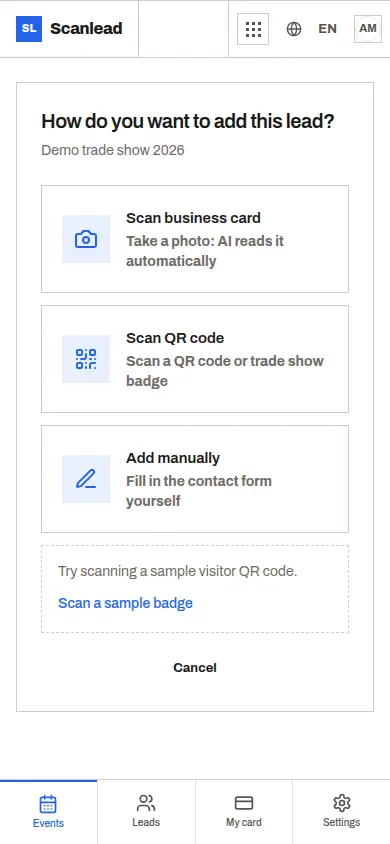
ScanLead reads badge QR codes that contain a vCard, a MeCard or a JSON contact, and fills in the contact form. When the QR code holds a LinkedIn profile link, ScanLead takes the name from it, and you add the rest.
Each scan lands in the event you are working, with its name, dates, city, venue and stand. On day three of a show, with 120 contacts captured, you still know exactly where each one came from.
When the badge only has a number
Some shows print badges that only the organizer's reader can interpret. A phone app cannot turn that number into a name. You have three options:
- Photograph the visitor's business card. ScanLead reads it and prefills name, company, email, job title and phone for you to check. See Business card scanner for trade shows.
- Type the contact in. A few fields, a status and a note: it takes less than a minute.
- Rent the organizer's scanner. It reads number-only badges, usually for a fee per show. We compare both approaches in Alternative to the organizer's badge scanner.
Qualify right after the scan
A scanned badge is just a name. What makes it a lead is what you write while the conversation is fresh. Right after the scan, mark the contact hot, warm or cold and add a note, for example "runs three sites, wants a demo in January".
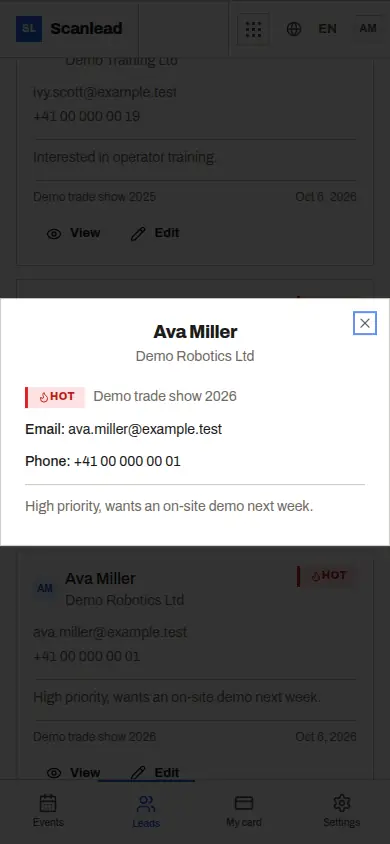
You can edit the record later: every change is time-stamped. If your hands are full, ask the built-in AI Assistant, for example "Change the status of my last lead to hot". It shows a confirmation card with the before and after, and nothing changes until you click Confirm. It can make mistakes, so read the card first.
Scanning when the network drops
Exhibition halls are hard on mobile networks. Open ScanLead while you still have a connection. If it drops afterwards, badge QR scanning and manual entry keep working: the contact stays on your phone and syncs when the network comes back. Reading a business card photo is the one capture method that needs a connection.
One phone per person, free for the whole team
ScanLead is free, with every feature included, no credit card and no subscription. There is no limit on badges scanned or on team members, so a solo exhibitor and a stand of six get the same tool.
Invite colleagues by email from Settings > Team. Each person scans with their own phone, in the browser or with the iPhone or Android app, and everyone sees the team's leads. More in Trade show app for sales teams.
After the show, export to CSV or Excel, or let CRMlead receive the contacts automatically with the same Lead account. To plan the next step, read Trade show leads to your CRM. Want a broader view first? Start with our free trade show lead capture app guide.
Frequently asked questions
Can a phone app read every trade show badge?
No. A phone app reads badges whose QR code holds the contact itself (vCard, MeCard, JSON) or a profile link. Badges with only an ID number need the organizer's reader.
What do I do if a badge only shows a number?
Photograph the visitor's business card, type the contact in, or rent the organizer's scanner. ScanLead handles the first two.
Does badge scanning work offline?
Yes, once ScanLead is open. Badge QR scanning and manual entry keep working without a network, and contacts sync when the connection returns.
Do I need a special device?
No. Your own phone is enough, in the browser with nothing to install, or with the iPhone and Android apps.
Is there a limit on how many badges I can scan?
No. ScanLead is free, with no monthly limit on badges, business cards or team members.